Client after client asked me the same thing: help us prove what our team actually does. Now that’s a weekend build, and I’ll show you how.
This one started as a client request, and then another, and then another. Help my team prove what we actually do. The reason was different each time. Sometimes it was internal, defending the function’s headcount in a reorg. Sometimes it was personal, a strong ops lead who wanted real evidence for a promotion case. Often it was budget season, where “we’re slammed” loses every argument to a team that can show exactly where its hours go.
Not long ago, answering that meant buying a time-tracking platform, fighting for the line item, and rolling out software nobody volunteered to learn. Expensive, heavy, and usually abandoned by the second month. That is no longer the trade. With an AI coding assistant next to you, you can build something private, small, and genuinely useful in a weekend, then make it available to your whole team through the Chrome Web Store.
So I built Legal Ops Maestro (www.legalopsmaestro.com), a Chrome extension that tracks legal ops work, maps it to the CLOC Core 12 framework, and turns it into a shareable picture of demonstrated skill. I am a lawyer, not a software engineer. The first version took a weekend.
This is the actual build, in order, with the real code and the real submission screens. I’ll tell you what I did, and at each step I’ll pull out the move you’d make to build the same thing for yourself or your team. We’ll build a local-only version first, the kind you can load and use today, then I’ll show you where it goes when you want more.
What you need before you start
- Chrome. That’s the runtime.
- A code editor. I use VS Code. A plain folder and an AI assistant will also do.
- An AI coding assistant. I use Claude Code in the terminal. Claude or ChatGPT in a browser tab works too. This is the part that replaces the computer science degree.
- A weekend. Less if you’re only building for yourself.
- Five dollars, one time, only when you’re ready to publish. Google charges a one-time developer registration fee. Building and using the extension yourself costs nothing.
No Node, no build tools, no server. A Manifest V3 extension is just a folder of plain files that Chrome reads directly. That simplicity is the whole reason this is approachable.
Movement 1: Name the one job before you write a line
Before any code, I wrote one paragraph: this tool turns the legal ops work you already do into proof of skill you can show off. One job. Not five.
That paragraph did more work than it looks like. Chrome will later make you declare your extension’s “single purpose” in one sentence, and reviewers reject tools that sprawl. More importantly, a tight scope is what makes a weekend build finish in a weekend.
Your move: write the one sentence your tool exists to satisfy. Then paste it into your AI assistant and ask it to argue with you. “Here’s the one job. What am I sneaking in that doesn’t belong?” Cut until it’s one job.
Movement 2: git init, then the file that makes it an extension
I made a folder and ran the least glamorous, most important command in the whole build.
mkdir legal-ops-maestro && cd legal-ops-maestro
git init
Version control is not a “real engineers only” ceremony. Solo, it gives you two things that matter enormously when you’re learning: every commit is a save point you can return to when an AI edit breaks something, and the whole project becomes a thing you can hand to an assistant in one piece. Commit early and often.
The heart of any extension is manifest.json. It tells Chrome what your extension is and what it’s allowed to touch. Here’s the one I started with, stripped to the essentials:
{
  "manifest_version": 3,
  "name": "Legal Ops Maestro",
  "version": "0.1.0",
  "description": "Track legal ops work and map it to the skills you can show off.",
  "action": { "default_popup": "popup.html" },
  "background": { "service_worker": "background.js", "type": "module" },
  "options_page": "options.html",
  "permissions": ["storage", "alarms"],
  "commands": {
    "_execute_action": {
      "suggested_key": { "default": "Ctrl+Shift+L", "mac": "Command+Shift+L" },
      "description": "Open Legal Ops Maestro"
    }
  }
}
Every line is plain English once you read it slowly. action.default_popup is the little window that opens when you click the icon. background.service_worker is a script that runs quietly in the background. permissions is the honest list of what you’re touching: storage to save data on the device, alarms to keep a timer reliable. commands wires up a keyboard shortcut. That’s it.
Notice what is not there. No access to your tabs, your browsing history, or any website. The fewer permissions you ask for, the faster your review goes and the more your users trust you. Ask only for what your one job needs.
Your move: tell your AI, “Write me a Manifest V3 manifest.json for a Chrome extension that opens a popup and stores data locally, nothing else.” Then read every line back and make it explain anything you don’t recognize. You are the architect; the AI is the drafter.
Movement 3: Load it into Chrome and watch it become real
This is the step that turns “someday” into “it’s running.” Create a bare popup.html that just says hello, then:
- Open
chrome://extensions/in Chrome. - Turn on Developer mode, top right.
- Click Load unpacked and select your folder.
- Pin the extension and click it.
Your thing is now running in your browser. No upload, no account, no waiting. When I built Legal Ops Maestro, I had a working popup loaded inside the first hour, and that early hit of “it’s real” is what carried me through the parts that were actually hard. Chase that moment fast. (Chrome’s official extension docs walk through this same flow if you want the canonical version.)
Your move: get a hello-world popup loaded today, before you build anything smart. Momentum beats planning here.
Movement 4: Store the data locally, by design
Legal Ops Maestro keeps everything on the user’s machine. There is no database in the MVP. All of the state lives under a single key in the browser’s local extension storage, and the whole app is just reading and writing one JSON object.
// Everything the extension knows lives under one key: "lom:v1"
function defaultState() {
  return {
    profile: { display_name: null },
    settings: { quick_log_mode: false },
    work_buttons: [],   // the buttons you click to log work
    entries: [],        // every logged segment
    active_timer: null  // the timer running right now, if any
  };
}
Everything else is a small helper that reads the blob, changes one field, and writes it back. That’s the entire data layer.
This is not just convenient, it’s a privacy stance. For a lawyer, that matters more than for most builders. Nothing about a user’s tracked work leaves their device unless they explicitly choose a feature that sends it somewhere. Build the local-first version and your hardest compliance questions answer themselves. As a rule, keep anything privileged or client-confidential out of the tools you’re still learning on. The local-first design is exactly what let me be comfortable.
Your move: decide the shape of your one JSON object. What does your tool need to remember? Everything else is reading and writing that shape.
Movement 5: Capture the work in one click
The product is a tracker, so the core interaction is dead simple: click a button that names what you’re doing, and a timer starts. Click it again to stop. Click a different one to switch, and the previous segment gets saved as an entry. There’s also a quick-log mode for days when you don’t want a running timer.
// Start a timer on a work button. If one's already running, stop it first
// and save that segment as an entry.
async function startTimer(button) {
  return updateState((s) => {
    if (s.active_timer) saveActiveTimerAsEntry(s);
    s.active_timer = {
      button_id: button.id,
      label_snapshot: button.label,
      start_time: new Date().toISOString()
    };
    return s;
  });
}
Two real-world details made this reliable. Chrome puts background scripts to sleep to save memory, which can interrupt a long timer, so I set a one-minute alarm that gently keeps the worker awake. And because people forget to stop timers, the background script paints a small red exclamation mark on the icon if a timer has been running past twelve hours. Small touches, but they’re the difference between a toy and a tool you trust.
Your move: make capture one click. Whatever your tool collects, the gap between “I should log this” and “logged” has to be near zero or you’ll abandon your own product.
Movement 6: Turn raw logs into something worth looking at
A list of timestamps is a chore. The reason Legal Ops Maestro is worth opening is what happens to those timestamps.
Each work button carries weights across the twelve legal ops competencies. A “redline an NDA” click might count mostly toward Practice Operations and Service Delivery. The app sums hours per category, turns those totals into tiers, and then picks a character archetype whose strongest categories match yours.
const TIER_THRESHOLDS = [
  { name: "Apprentice",   min: 10 },
  { name: "Practitioner", min: 50 },
  { name: "Expert",       min: 200 },
  { name: "Wizard",       min: 500 }
];
Track contract-heavy work and you surface as Keeper of the Redlines. Spread your time across everything and you become the Chaos Tamer, the one people call when it’s already on fire. Each badge comes with a plain evidence line, generated from the data, like: Based on 868h tracked across Practice Operations, Technology, and Knowledge Management over 240 days. That sentence is the thing a user can paste into a review or a LinkedIn profile.
Here’s the part that should encourage you: this transformation layer is pure logic. Numbers in, a result out, no network, no side effects. Pure functions are the easiest kind of code to get an AI to write correctly, because they’re trivial to test. You describe the rule, the AI writes the function, and you can check it with a handful of made-up entries.
Your move: decide what your raw data should become. A score, a status, a streak, a summary. The transformation is what makes a tracker into a thing people want to open.
Movement 7: Make it yours, then make it presentable
Once the core worked, I spent a polishing pass on the parts that make it feel like a product instead of a prototype: an icon set, a small brand palette, and a short first-run onboarding that explains the one job. None of this is hard. All of it is what separates “I built a thing” from “I’d let someone else use this thing.” Don’t skip it, and don’t start with it either.
Where it goes next (and why you shouldn’t start here)
Everything above is a local-only extension. No accounts, no server, no recurring cost. That is genuinely where you should stop for your first build.
Legal Ops Maestro eventually grew a back end, because I wanted optional AI features that write résumé bullets and a narrative from your tracked work. The honest truth is that this is a different size of project. The moment you want hosted AI, sign-in, or payments, you cross from a weekend into real infrastructure. In my case that meant a Cloudflare Worker for the API, a small database, magic-link sign-in so there are no passwords, an AI gateway configured for zero data retention so prompts are never stored, and a merchant-of-record service to handle checkout and tax. Each of those is a deliberate decision with privacy and money attached.
The sequencing lesson is the whole point: I shipped the local version first and used it for weeks before any of that existed. Build the thing that works on your own machine. Add the server only when a feature genuinely can’t live without one.
Shipping it: the Chrome Web Store, screen by screen
Using your extension privately needs nothing but Load unpacked. Publishing it to the store is how a small private tool goes global for your team: everyone installs the same extension, and each person’s tracked work stays on their own machine. That combination, private to each person and live for the whole team, is what used to require an expensive platform. Here is exactly what walking the Developer Dashboard looks like.
First, register as a developer (the one-time fee), then zip your extension folder. The source files are the real package; the zip is just a transport.
zip -r ../legal-ops-maestro.zip . -x "*.DS_Store"Upload that on the Package tab, then fill out the listing. A tip that applies to every screen below: each field has Google’s helper text next to it. Paste that helper text and your one-paragraph spec into your AI and ask, “How should I answer this for an extension that does X?” That is how you write the description and every justification without staring at a blank box.
Store listing. Your title and summary are pulled straight from your manifest. You write the longer description, choose a category (I used Productivity), and set the language.
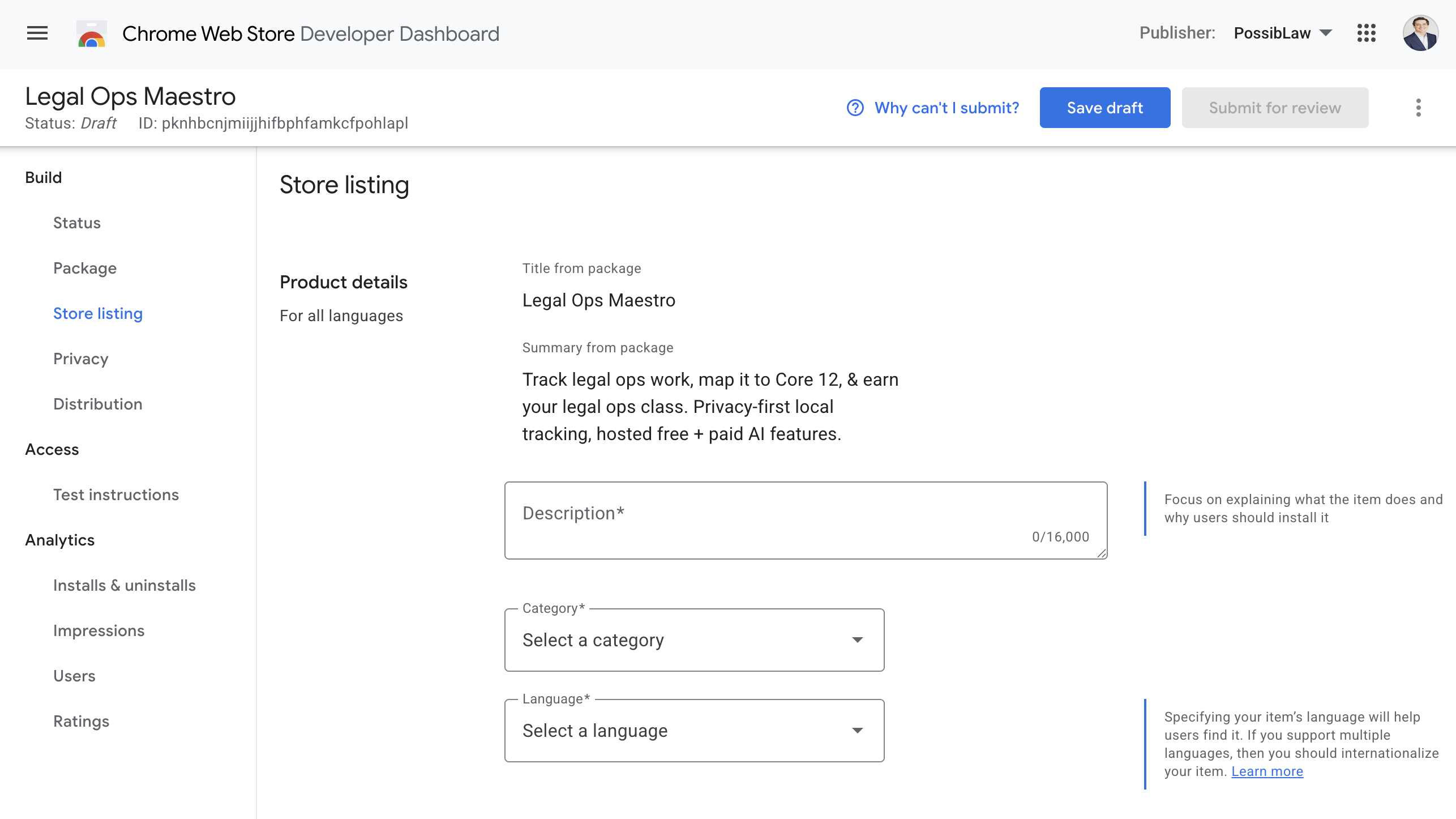 Store listing. Title and summary come from your package; you write the description and pick a category.
Graphic assets. You need one 128x128 store icon and at least one screenshot at 1280x800. A small promo tile helps your listing look finished. Use real screenshots of your own UI, and let an AI image tool generate the promo tiles.
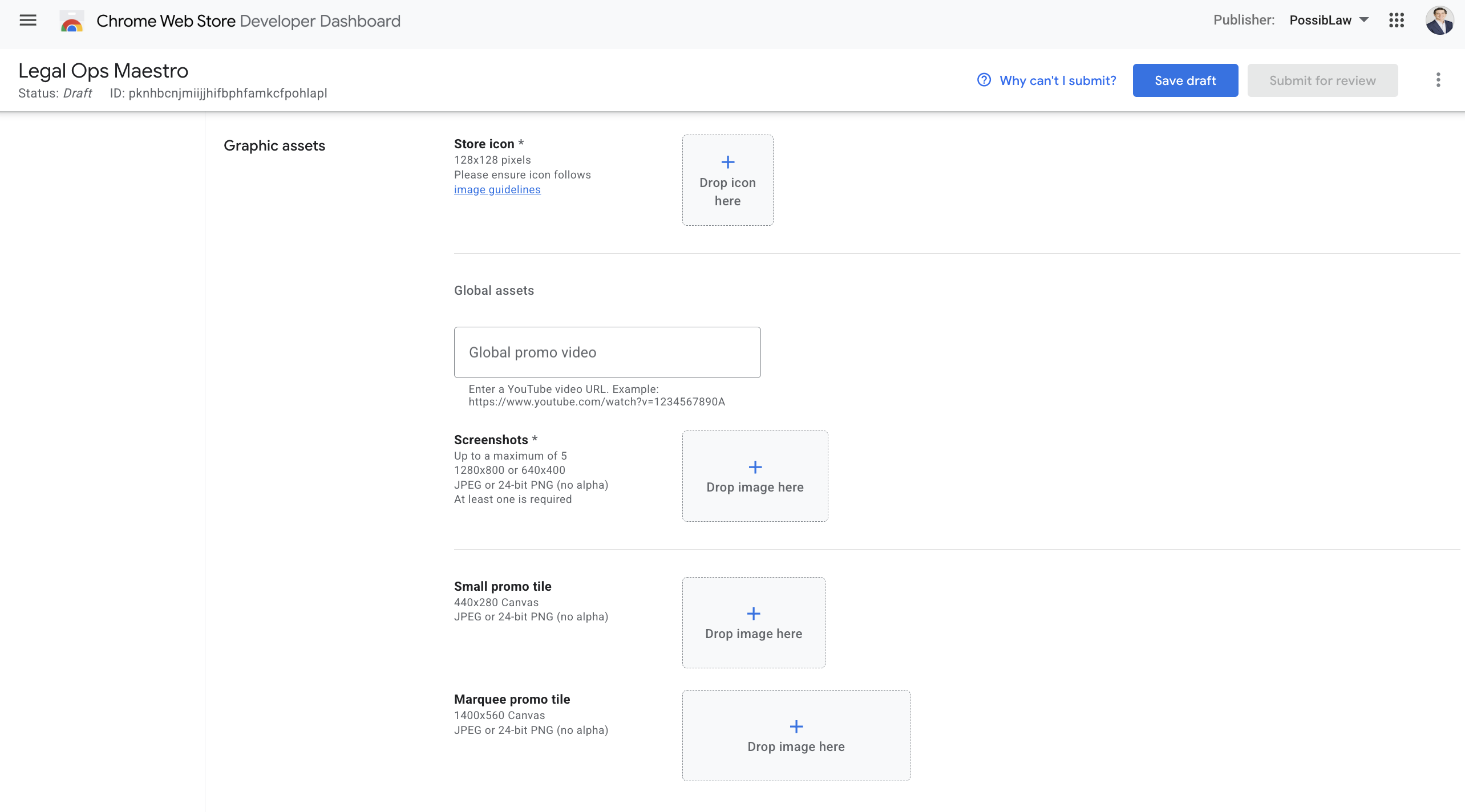 Graphic assets. One icon, at least one 1280x800 screenshot, optional promo tiles.
Additional fields. Link your homepage and a support page, and leave the Mature content toggle off.
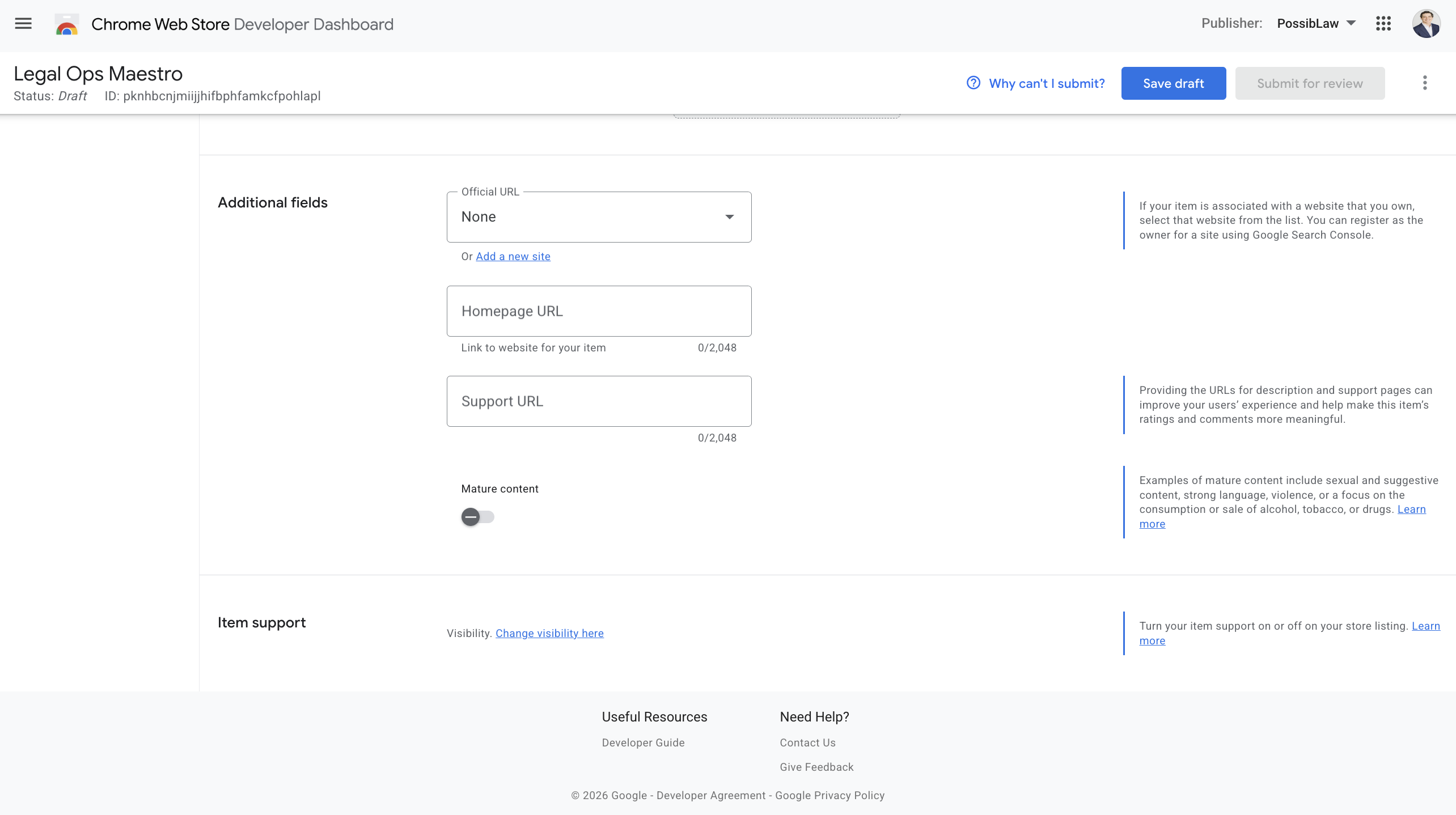 Additional fields. Point users to a homepage and a support page.
Privacy: single purpose and permissions. This is where that one-sentence purpose from Movement 1 pays off. You also justify every permission you requested. Notice the warning: asking for host access triggers a deeper review. If you don’t need a permission, remove it. Unneeded permissions are a common rejection.
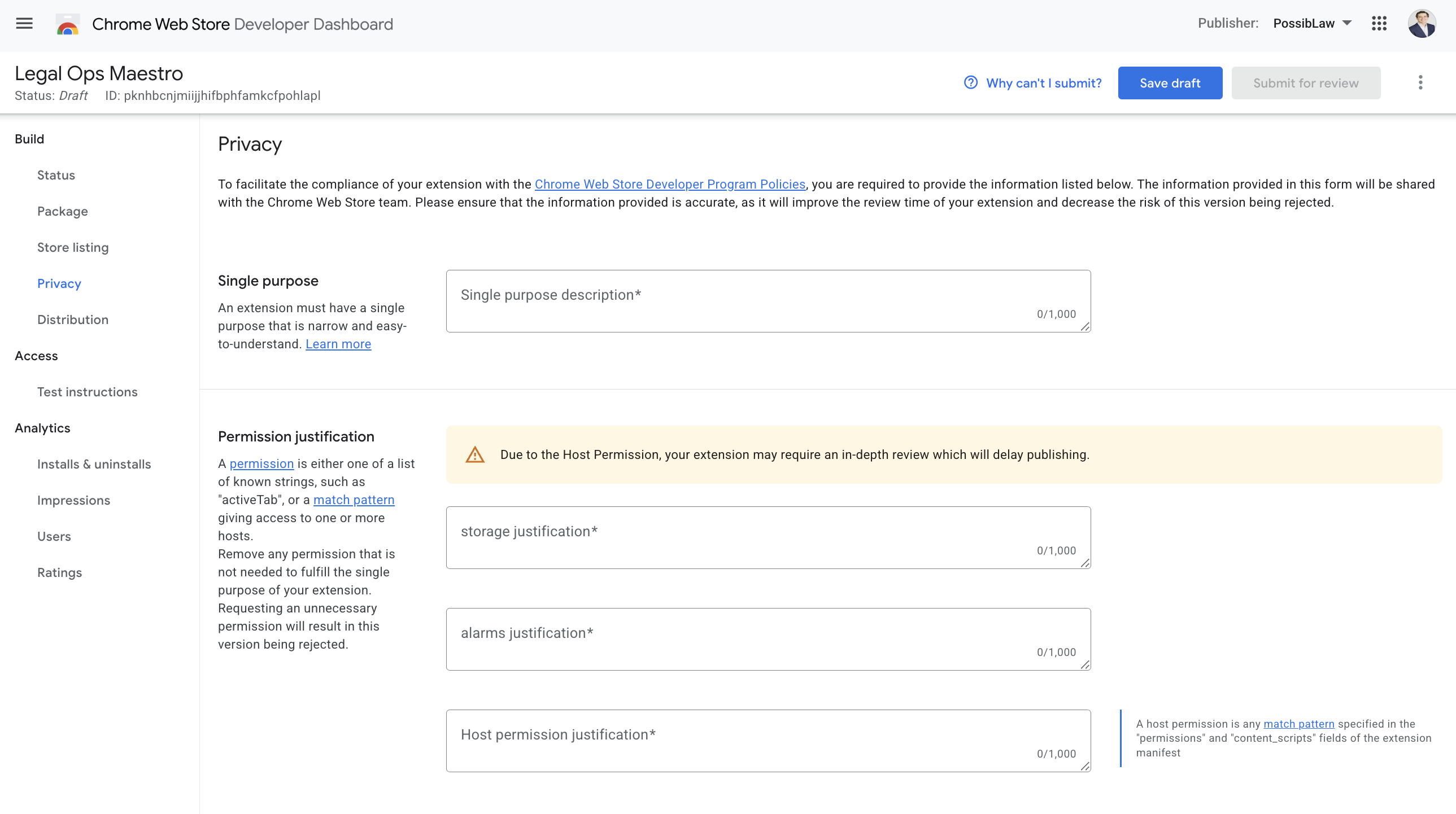 Single purpose, plus a justification for each permission. Host permissions get extra scrutiny.
Privacy: remote code and data use. Read the remote-code question carefully. Google defines remote code as executable scripts loaded from outside your package, not ordinary data your extension fetches from an API. A local-only extension answers No here, and leaves every data-collection box unchecked, which makes the rest of this form short.
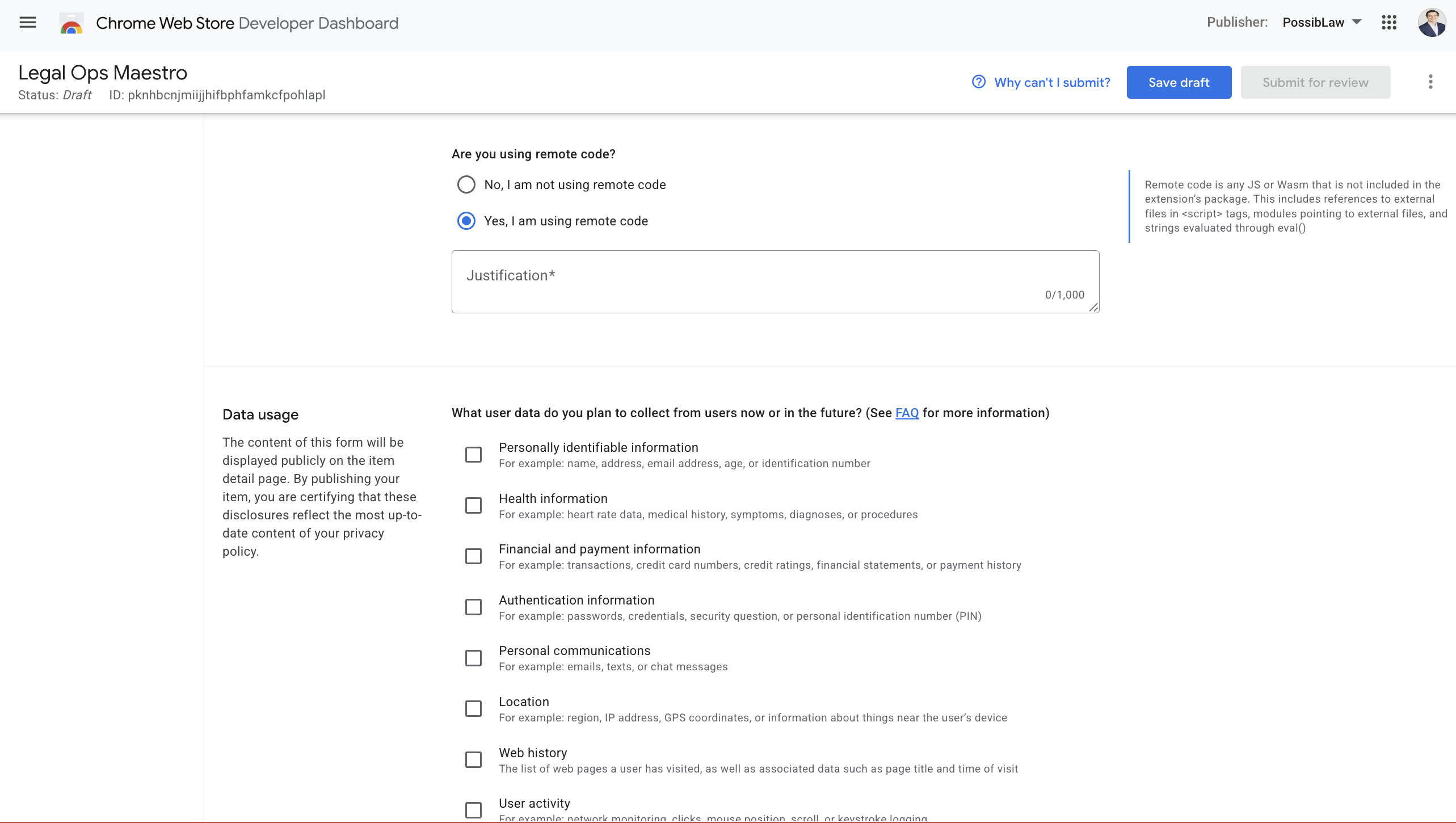 The remote-code question and the data-use checklist. A local-only build answers No and checks nothing.
Privacy: certifications and policy. Three certifications about how you handle data, and a privacy policy URL if you collect anything. Collect nothing, and you have almost nothing to certify.
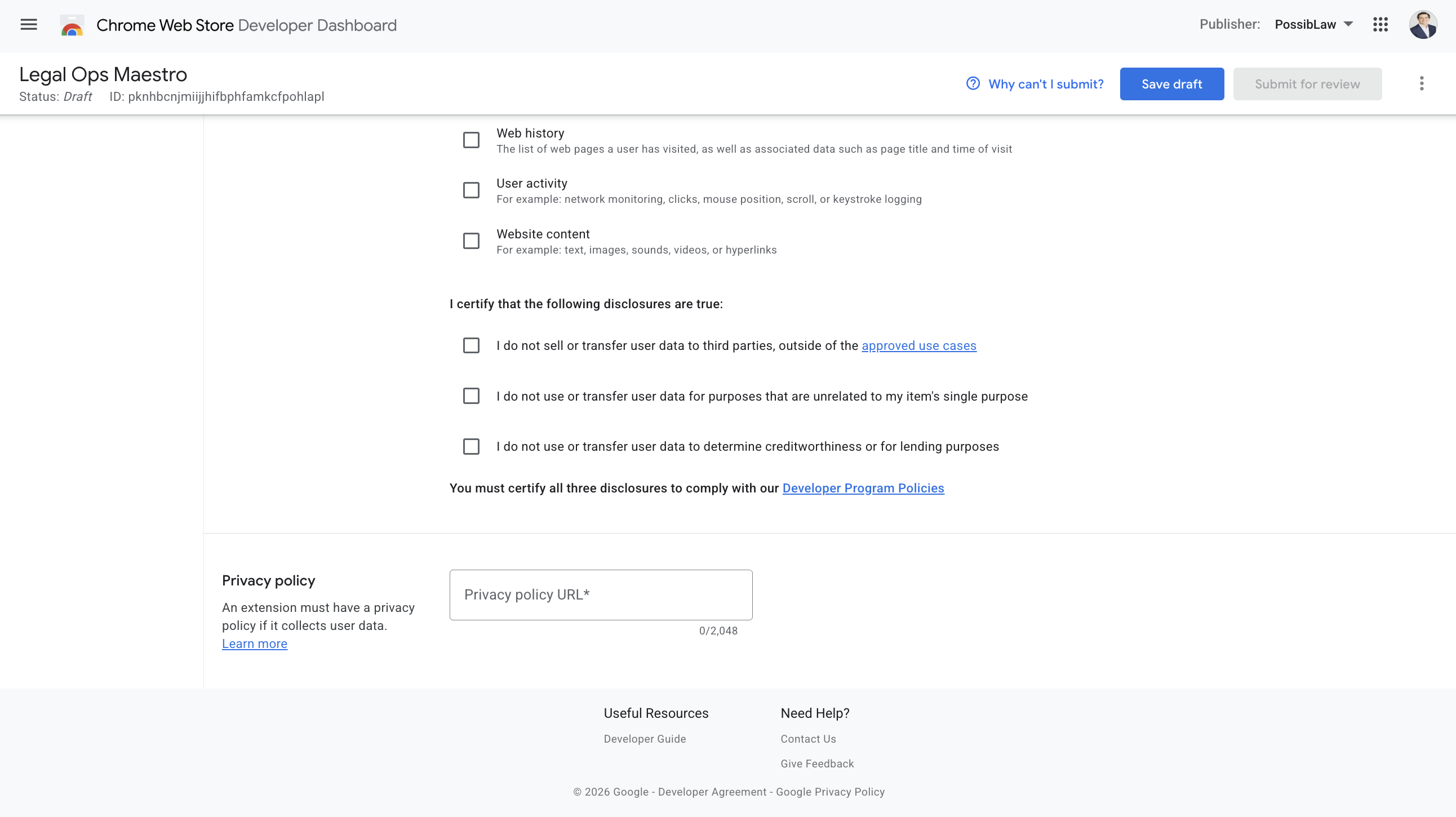 The three required certifications and the privacy-policy URL.
Distribution. Free of charge, public, all regions. Then the button you’ve been working toward: Submit for review.
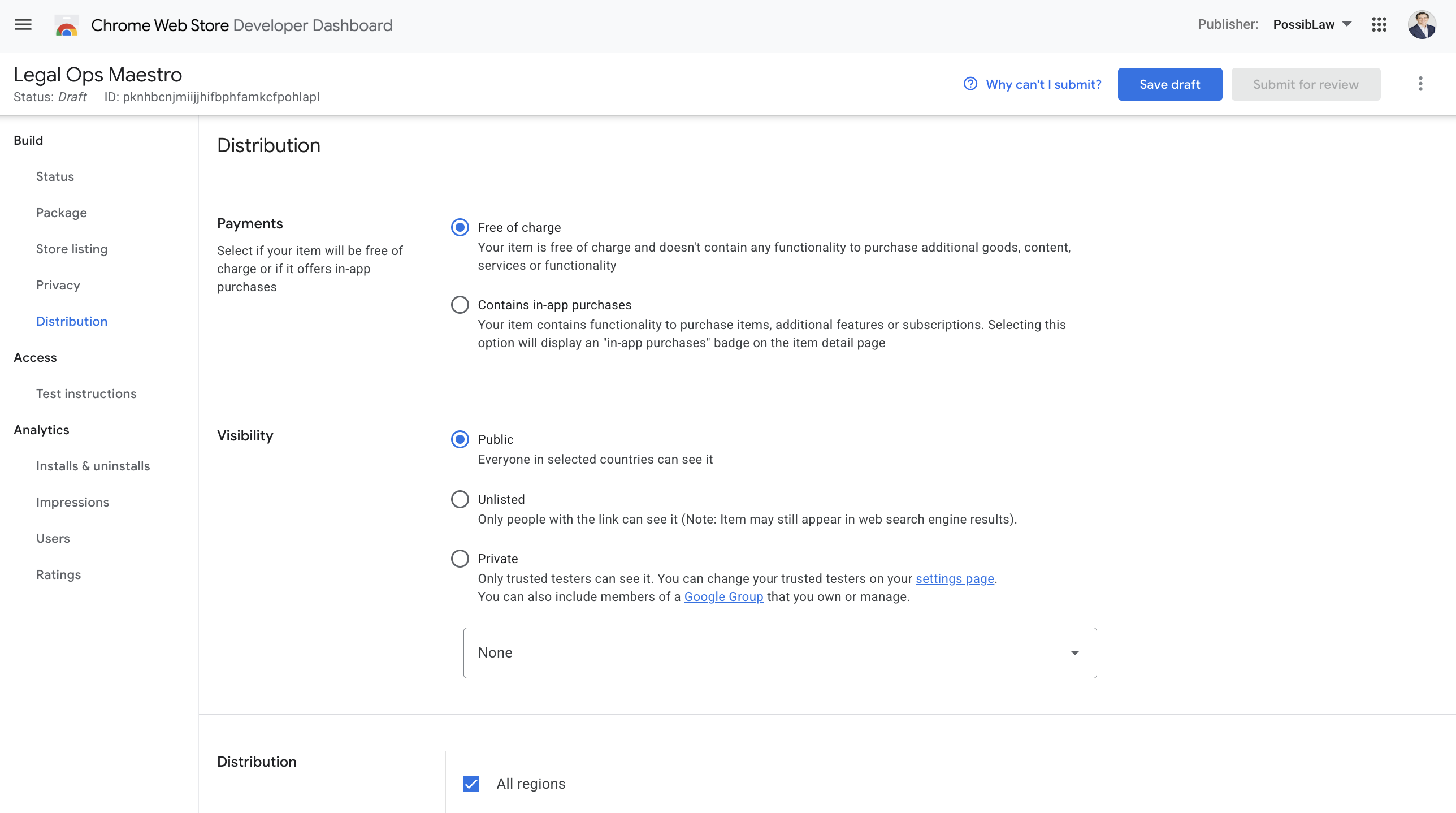 Distribution. Free, public, all regions, ready to submit.
Review can take anywhere from a few hours to a few days. While it’s a draft, your listing carries a temporary ID; once it’s published you get a permanent store URL you can share. Legal Ops Maestro is live in the Chrome Web Store if you want to see where this whole path lands. [Sal: confirm this is the current live URL before publishing. The fresh draft in the screenshots is under the PossibLaw publisher with ID pknhbcnjmiijjhifbphfamkcfpohlapl, not the older hmddnclbmjofhgcpghpkiclchgopbkmj.]
When this is the wrong move
Building your own tool is not always right, and it helps to know the edges.
A local-only extension is genuinely yours and genuinely private, but it won’t sync across your devices and it can’t do anything that needs a server without the jump in complexity I described. If your real need is multi-device sync or team dashboards on day one, a local MVP will frustrate you.
You also own the upkeep. Chrome evolves its extension platform, and when it does, your tool is your responsibility. A vendor absorbs that cost; a builder absorbs it personally. For a narrow tool that does one job, the upkeep is light. For something sprawling, it compounds.
And publishing adds a tail of work that the build itself doesn’t. Making icons, capturing screenshots, and filling out the privacy forms took me longer than I expected the first time. If you only need the tool for yourself, Load unpacked and skip all of it.
The shift underneath the build
The old position was borrower. You waited for someone else to decide your workflow was worth building, then you adapted your work to whatever they shipped. The new position is architect. You open an empty folder, name the one job your work actually needs, and a few days later the exact tool exists, on your machine, behaving the way you decided it should.
The extension is almost beside the point. What changed is the distance between a client asking “help us prove what we do” and you handing them the tool that does it. For a legal professional with an AI assistant, that distance is now a weekend, not a budget cycle. Once you’ve crossed it once, you stop describing tools you wish a vendor would make, and you start building them. You can see where mine ended up at www.legalopsmaestro.com.
Subscribe to PossibLaw. Substack. Podcast. Tools to become a builder. We run custom training for legal teams who are done watching from the sidelines. Let’s talk.
Get the next one on Friday.
Applied AI for professionals, by Sal Carranza. One workflow a week, free.